
Get in touch with us today and our team of imaging professionals will be pleased to assist you.
Stream a Camera to Multiple Servers with Multicast
eCapture Pro 1.5.0 and later supports multicast to make one camera stream available to more than one server running eCapture Pro. In this workflow, the publishing server publishes the camera stream, and the target server adds the camera as a multicast slave.
Before you begin
- Connect the camera, publishing server, and target server to the same multicast-enabled switch.
- Use a valid Multicast IP address and Multicast Port for your network. If you are not sure which values to use, contact your network administrator.
- Run the same supported eCapture Pro version on the publishing server and the target server.
- In the System view, add the publishing server and target server.
- In the System view, add the NIC and camera on the publishing server.
Configure multicast
- Select the camera node for the publishing server in the graph.
- In Selected Nodes, select the camera settings gear icon.
- In the camera settings dialog, enable Publish Multicast and enter the Multicast IP and Multicast Port values (figure 1).
- Select the target server node in the graph.
- Add the NIC that is connected to the multicast-enabled switch to the graph.
- Select the target server node in the graph.
- In Selected Nodes, under Add cameras, select + beside the camera labeled Multicast Slave (figure 2).
Verify success: The multicast slave camera appears in the System view graph on the target server.
Note: A multicast slave camera does not appear as a camera stream tile in Live View. To view images in Live View from a multicast slave camera, use it as a source in a Processing view pipeline with an Image Display task.
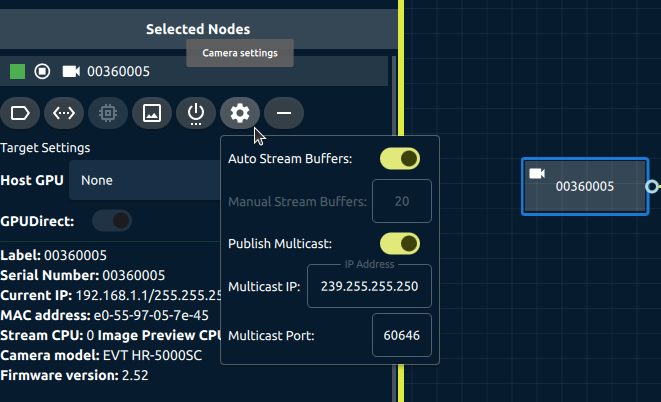
Figure 1: Use the camera settings dialog to configure multicast settings for a camera selected in the System view graph
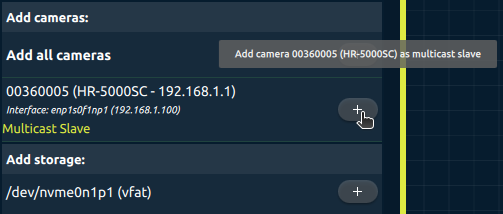
Figure 2: Select the + icon beside a camera labeled Multicast Slave to add it to the System view graph
Use the multicast slave camera in the Processing view
Use the multicast slave camera as a camera source in the Processing view. You can use it with processing tasks that accept a camera source.
Troubleshooting
If the multicast slave camera does not appear in System view:
- Confirm that the camera hardware and both servers are connected to the same multicast-enabled switch.
- Confirm that the publishing and target servers are running the same supported eCapture Pro version.
- Confirm that the NIC connected to the switch is added to the graph on the target server.
- Confirm that the publishing server is using the intended Multicast IP and Multicast Port values.
If the multicast slave camera does not provide images in the Processing view:
- Confirm that the publishing server is still publishing the multicast stream.
- Confirm that the Processing view pipeline uses the multicast slave camera node as the camera source.
See also
- Configuring Emergent Vision Cameras with eCapture Pro
- Processing Images from Cameras
- Using eSDK Pro Examples — includes the
multicastexample for eSDK Pro
Get in touch with us today and our team of imaging professionals will be pleased to assist you.